QR LapScan in five short steps.

The smartphone reads QR wristbands, counts laps, and helps volunteers with registration and lap tracking – right on event day.

This guide works best on two devices, for example a laptop and a smartphone, since the QR codes are scanned with the app from the screen here.

QR LapScan app iconNow on the App Store · Android coming soon
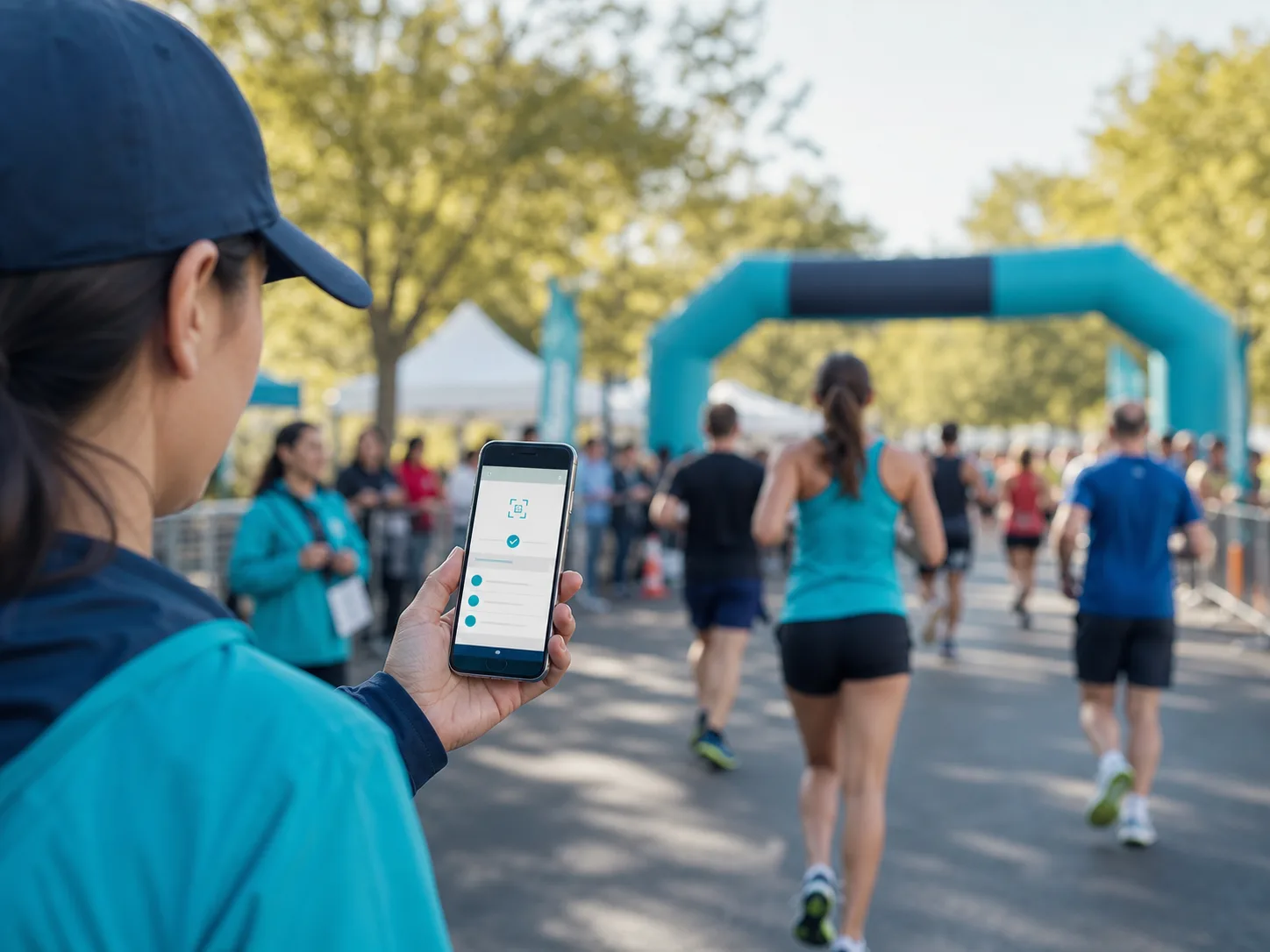
A helper using QR LapScan at a running event

Load the configuration.

Scan the setup code and enter the demo password.

Open Settings → Load configuration in QR LapScan to do this. Three scan modes are then available: check QR code, count laps, and assign QR code.

Password demo2026

Setup QR code for the demo configurationPersonal demo configuration, valid for 30 minutes

Check QR code.

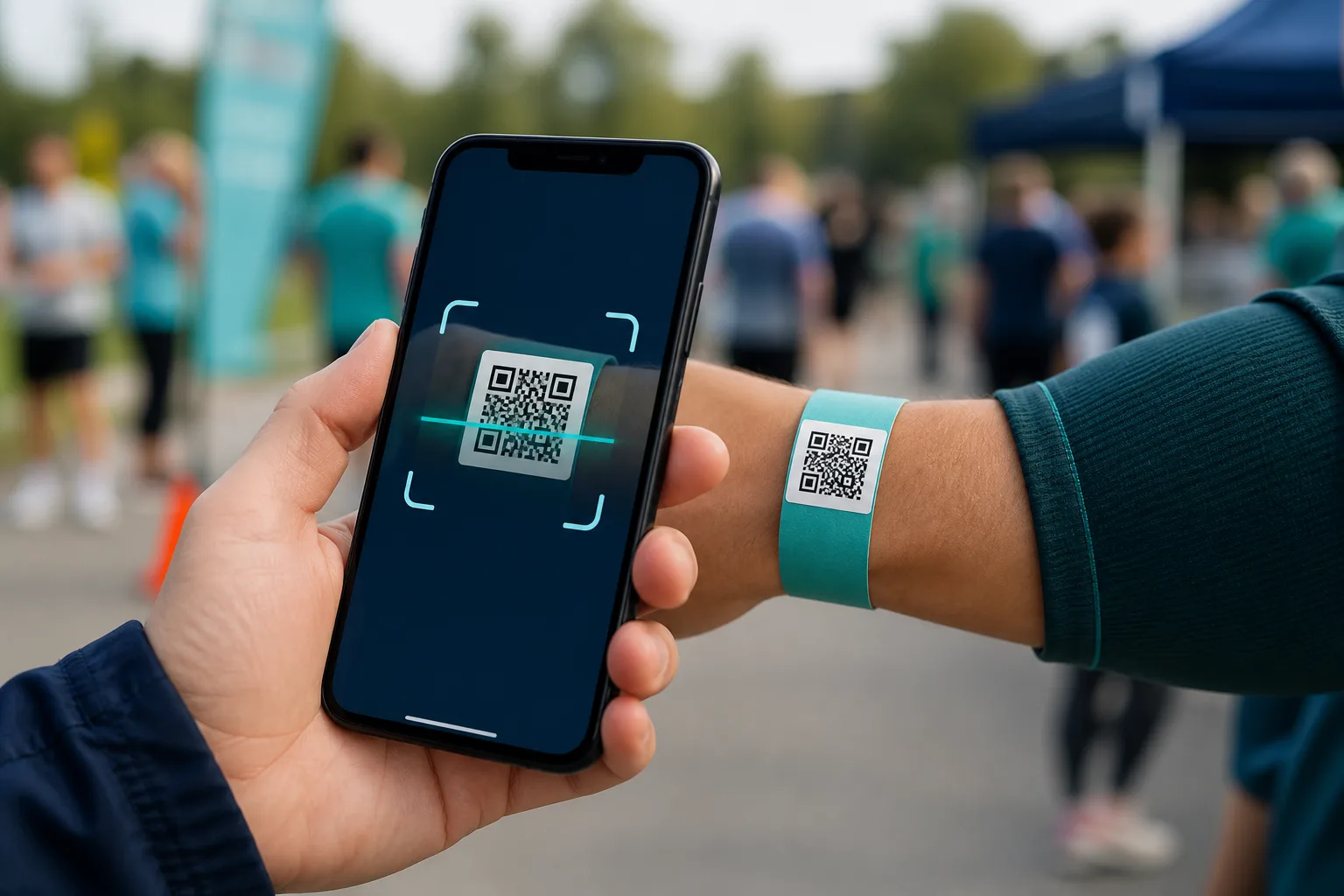
Scan the QR code → see participant data.

Open Scan → Check QR code and scan the example code. If the QR code is valid, the participant's number, name, and current lap count are shown. This lets you check before or during the event whether a QR code is correctly assigned and how many laps have already been recorded.

A smartphone scanning a runner's QR wristband
Runner number 101

Jan

0 laps
QR code for Jan

Count laps.

Scan the QR code → the lap is counted.

Helpers scan the QR code on the participant's wristband as they pass by. Every valid scan counts one lap. The same QR code can only count again after 5 seconds at the earliest.

Runner number 101

Jan

0 laps
QR code for Jan
0Laps recorded

Assign QR code.

Helpers can assign a free QR code on site to participants who weren't prepared in advance or signed up late.

To do this, the smartphone is connected to a station in the event portal. There, you select the participant and then scan a free QR code. It can then immediately be used to check and count laps.

Connect to station
Scan a free QR code
Assign QR code

Done.

The three core features are ready.

Check QR code

View participant data and current laps directly on site.

Count laps

Record scans reliably, with double-scan protection.

Assign a QR code

Assign codes to participants flexibly on site.

Try out every feature now, for free, in the playground or request a pilot event.

Free sandbox

Try out QR codes freely.

The free sandbox shows all three app features: counting laps, looking up QR codes, and assigning them. All data is temporary, isolated per visitor, and automatically discarded after 30 minutes of inactivity.

Start with the guided demo. If you want to try the features freely afterwards, use the free sandbox.

Requires the QR LapScan app on an iOS or Android smartphone.

Set up the app: scan the setup code in QR LapScan

1 · Lookup

A QR code with your own sample data.

Adjust the first name and runner number, scan the code, and see the response directly in the app.

Changes are applied to the sample code's response immediately.

Dynamic QR code for looking upLOOKUP0001
Response in the appRunner number 101

Jan

Demo team · 0 laps

Pair check-in station

Scan the pairing code with the app.

Pairing code for the playgroundChoose "Assign QR code → Pair with station" in the app
Setup

Scan the setup code with the app.

Setup QR code for the demoChoose "Settings → Load configuration" in QR LapScan, password demo2026

Assignment released

The QR code can be assigned again.